Push a live stream from OBS to OctoStream
Use OBS Studio when you want to send a live production, camera scene, screen share, or encoded video feed into OctoStream over RTMP.
Create a new stream in OctoStream
Open the OctoStream livestream dashboard and click Create Stream.
Select Push from OBS or Encoder, give your stream a name, click Continue, then click Create Stream.
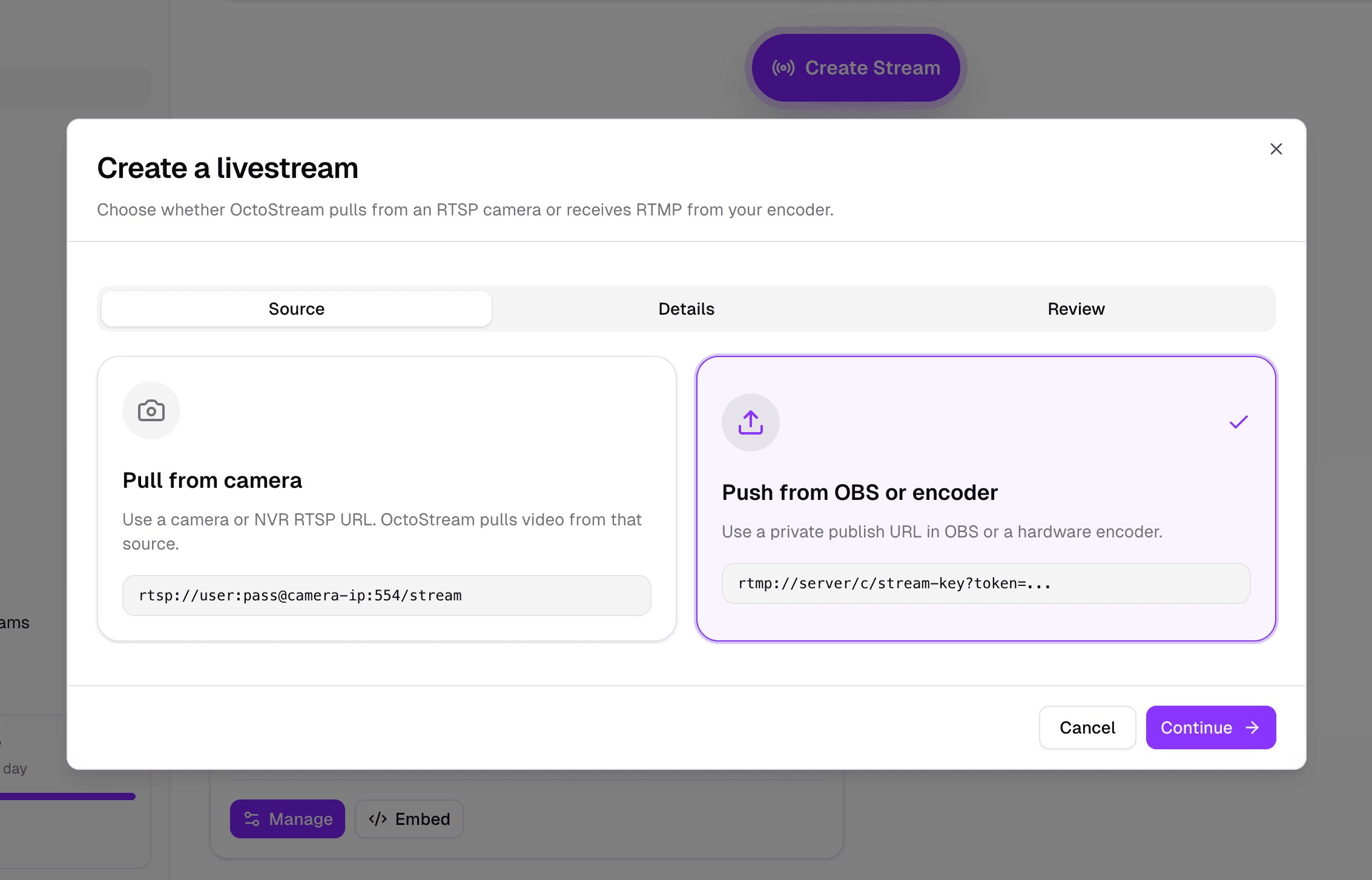
After the stream is created, OctoStream is ready to receive video from OBS.
Copy the RTMP publish URL
Open the new stream in your dashboard, then click the RTMP publish setup link.
Copy the publish URL. This is the RTMP endpoint OBS will use to send video to OctoStream.
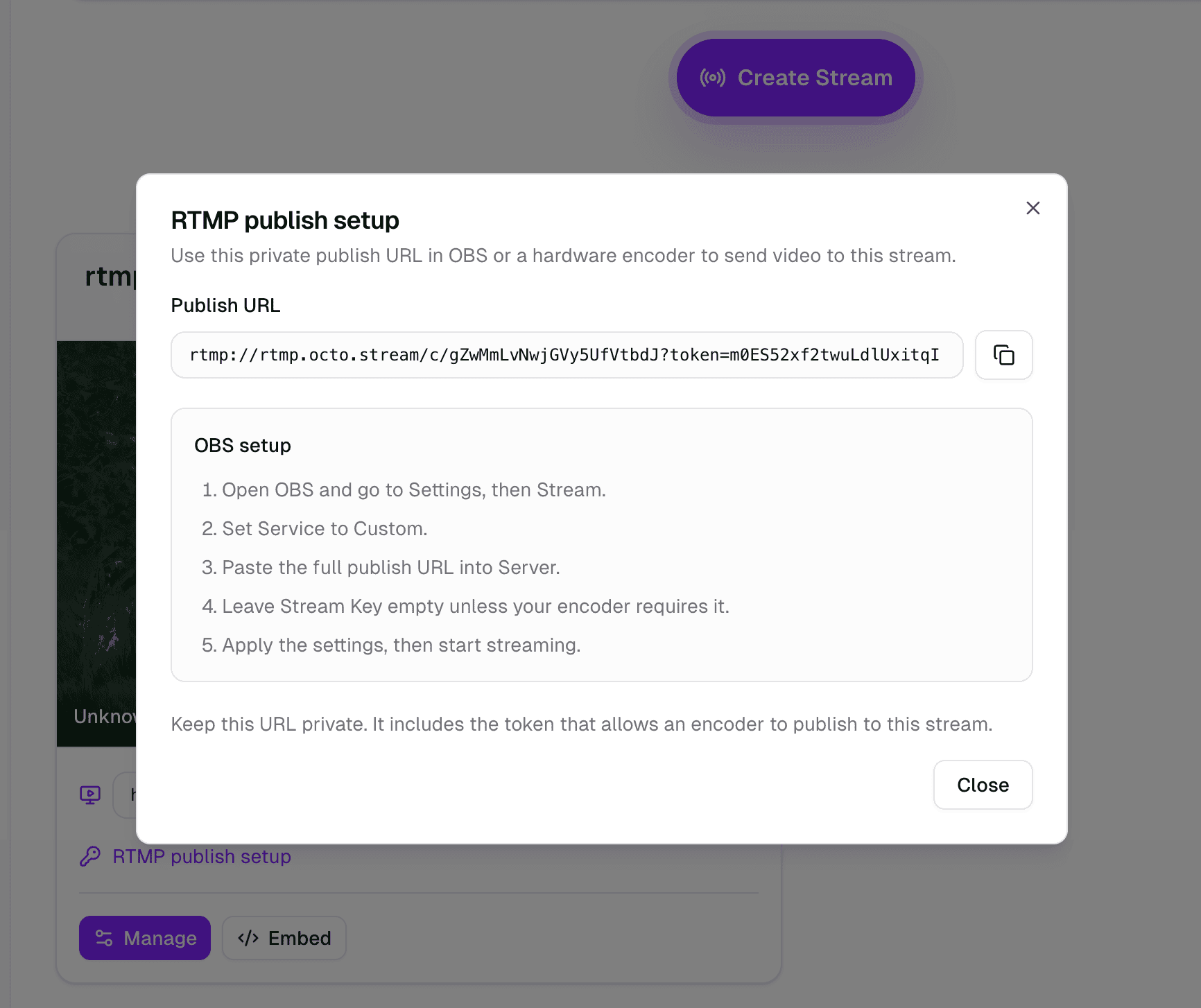
Paste the publish URL into OBS
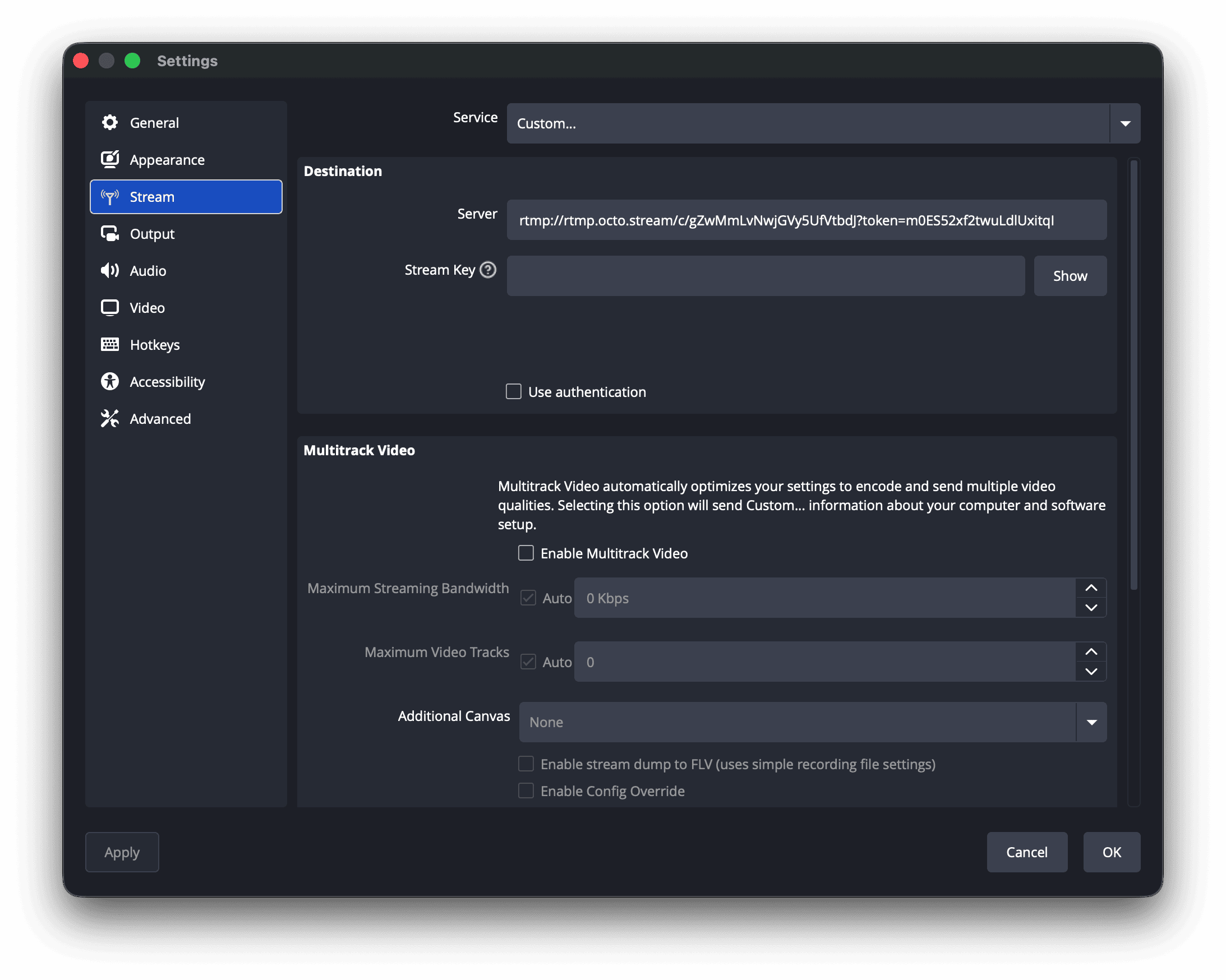
Open OBS Studio, then go to Settings > Stream.
Paste the OctoStream publish URL into the Server field, then click OK.
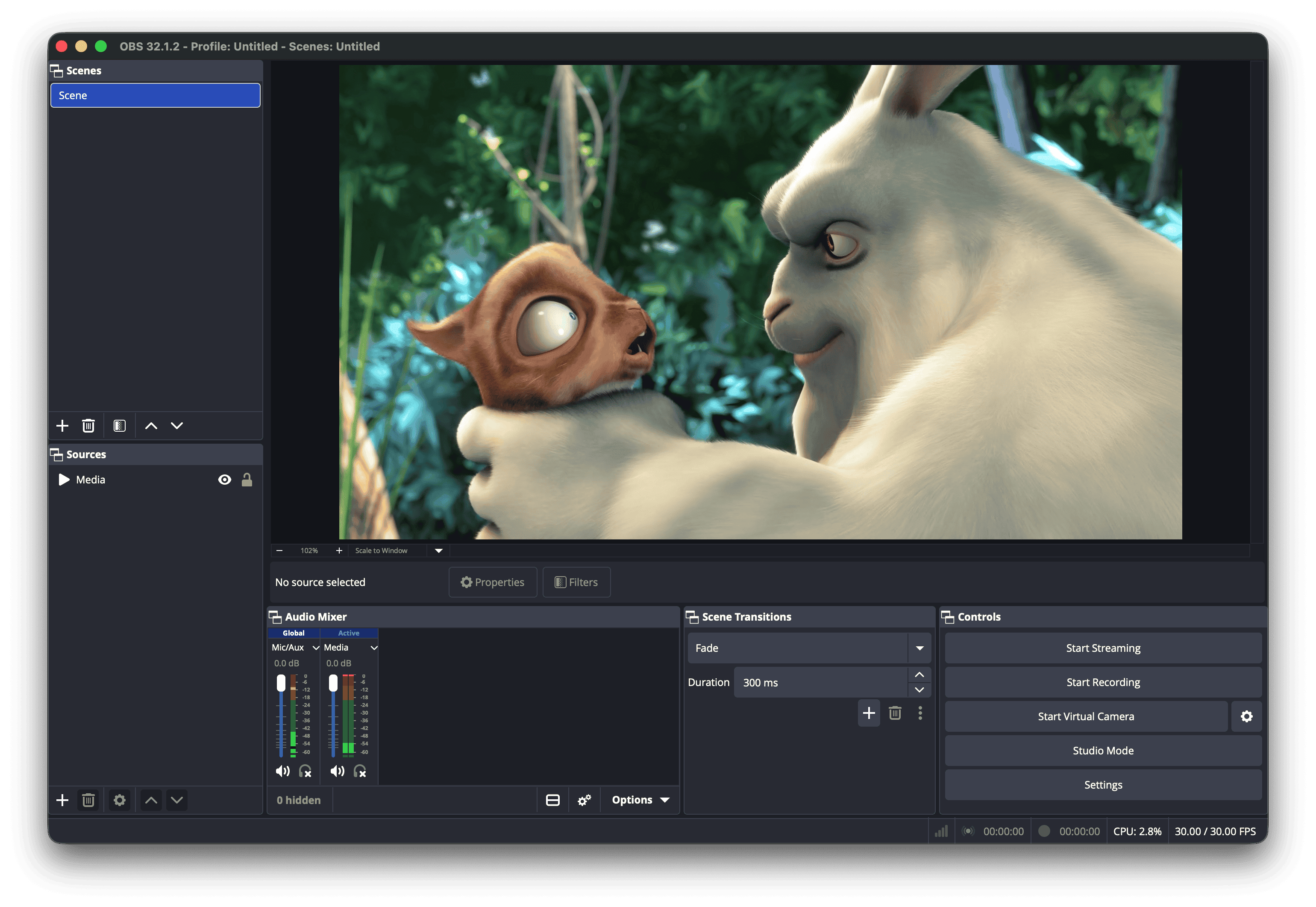
Start streaming
Return to the main OBS window and click Start Streaming.
OBS will begin pushing your video feed to OctoStream.
Watch the live playback
Go back to the OctoStream dashboard and open the live playback link for your stream.
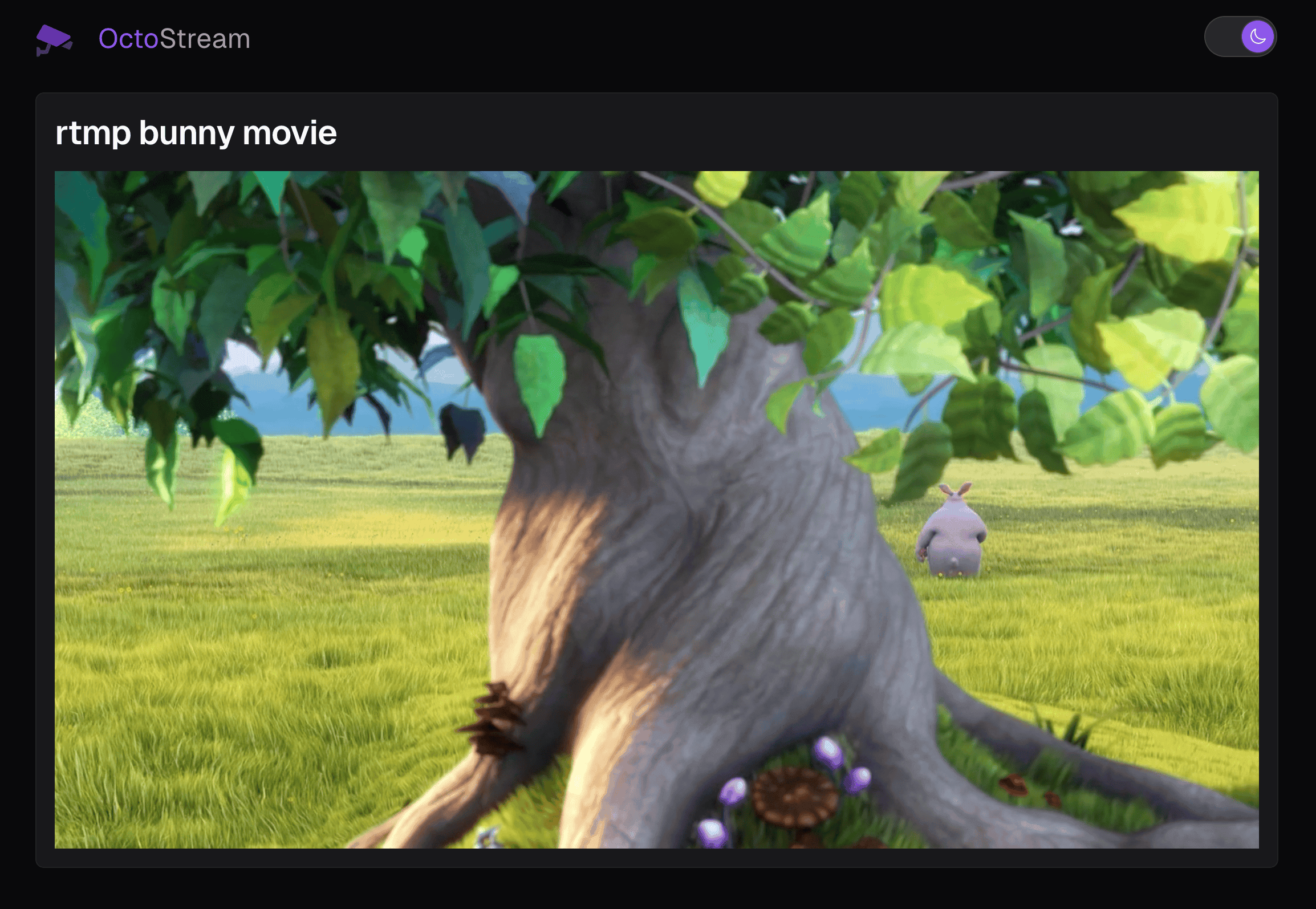
After a few seconds, your live video should appear. From there, you can share the playback link, embed the video on your website, enable recording, or restream to social platforms.