Restream to X (Twitter) Livestream with OctoStream
Use OctoStream when you want one source, such as an OBS RTMP stream or an IP camera RTSP feed, to restream to X, YouTube, Twitch, Facebook, or another RTMP destination at the same time.
This guide assumes you already have a stream in OctoStream. If you are using OBS and have not set that up yet, start with Push a live stream from OBS to OctoStream.
Create a livestream source in X
Open the X Live dashboard at studio.x.com/live.
Click New Livestream, enter the livestream title, and add a source name.
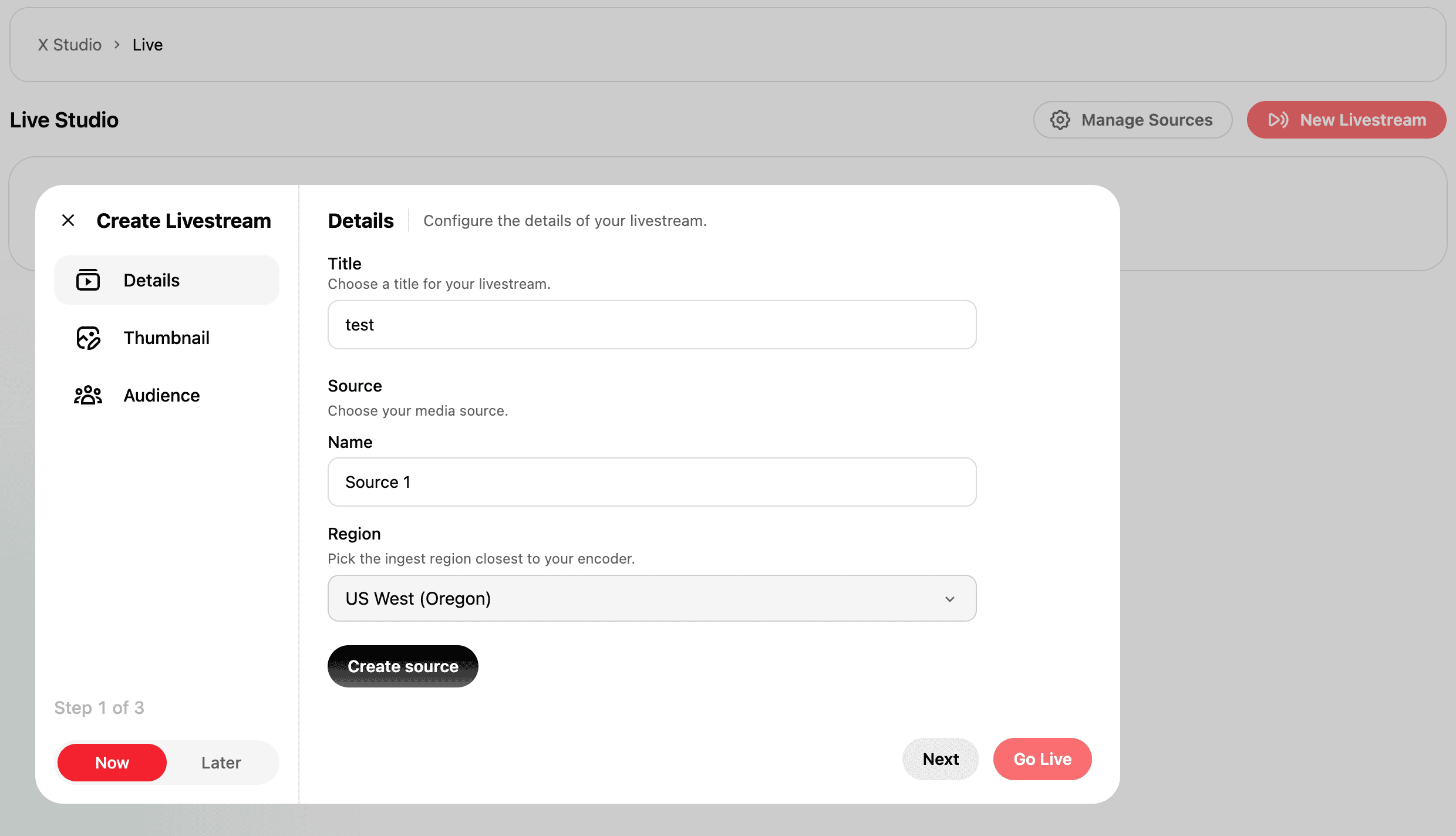
Click Create Source, then copy the RTMP stream key from X. You will paste this key into OctoStream.
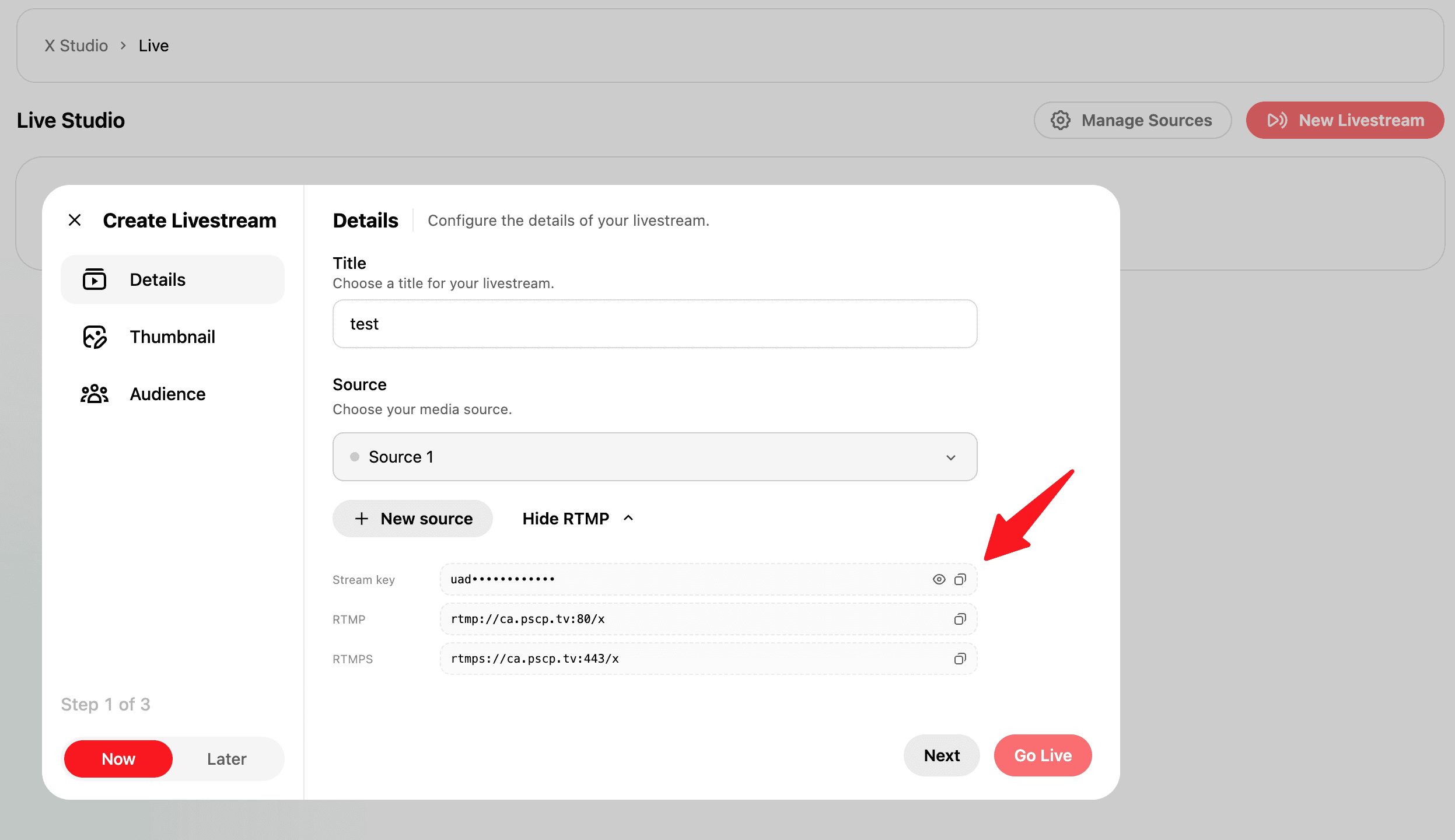
Open your stream destinations in OctoStream
Go to the OctoStream dashboard and open the stream you want to restream. If you have not created a stream yet, create one from an RTSP camera source or follow Push a live stream from OBS to OctoStream for OBS setup.
Click Manage Stream, then select the Destinations tab.
If you already have destinations such as YouTube or Twitch configured, leave them enabled. OctoStream can send the same incoming OBS stream to multiple destinations at once.
Add X as a destination
Click Add Destination.
Choose Twitter / X, paste the stream key you copied from X, then click Add Destination.
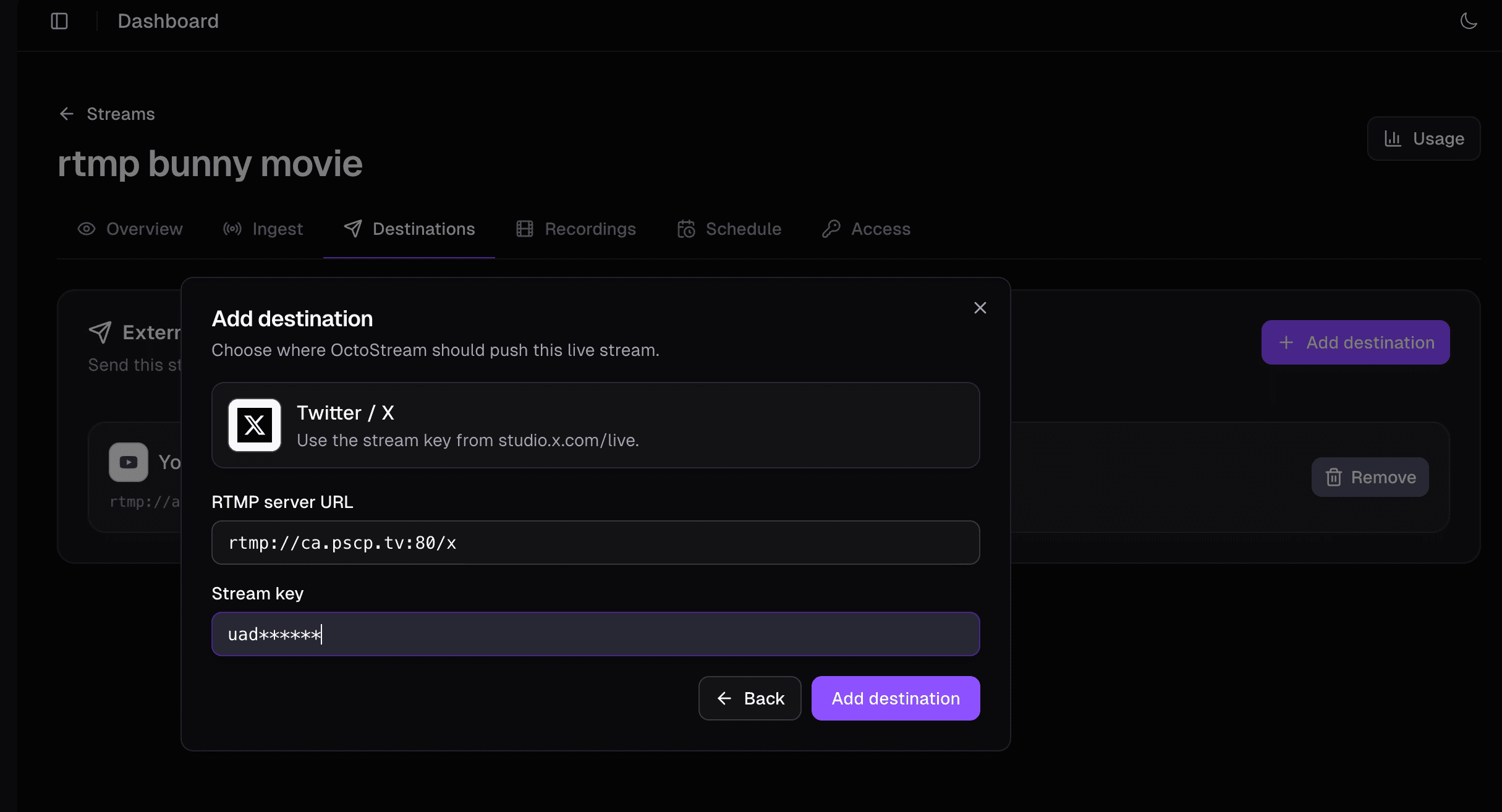
OctoStream stores X as an external RTMP destination for this stream. When OBS starts publishing to OctoStream, OctoStream will connect to X using that stream key.
Start streaming from OBS
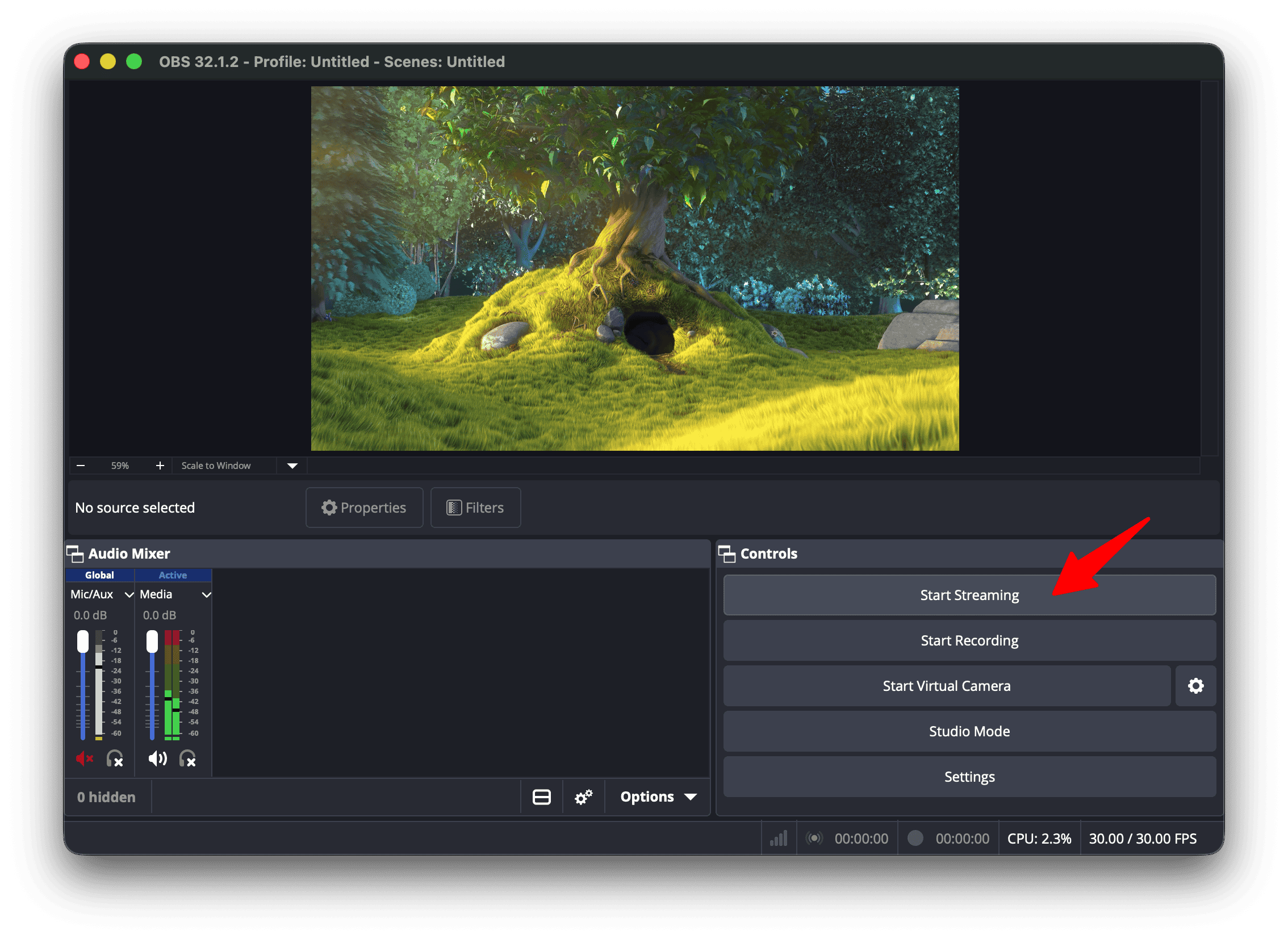
Return to OBS and click Start Streaming.
OBS sends your video to OctoStream. OctoStream then restreams that feed to X and any other enabled destinations, such as YouTube or Twitch.
Confirm the source is connected in X
Go back to the X Live dashboard.
After about 15 to 20 seconds, the stream source should turn green. That means X is receiving video from OctoStream.
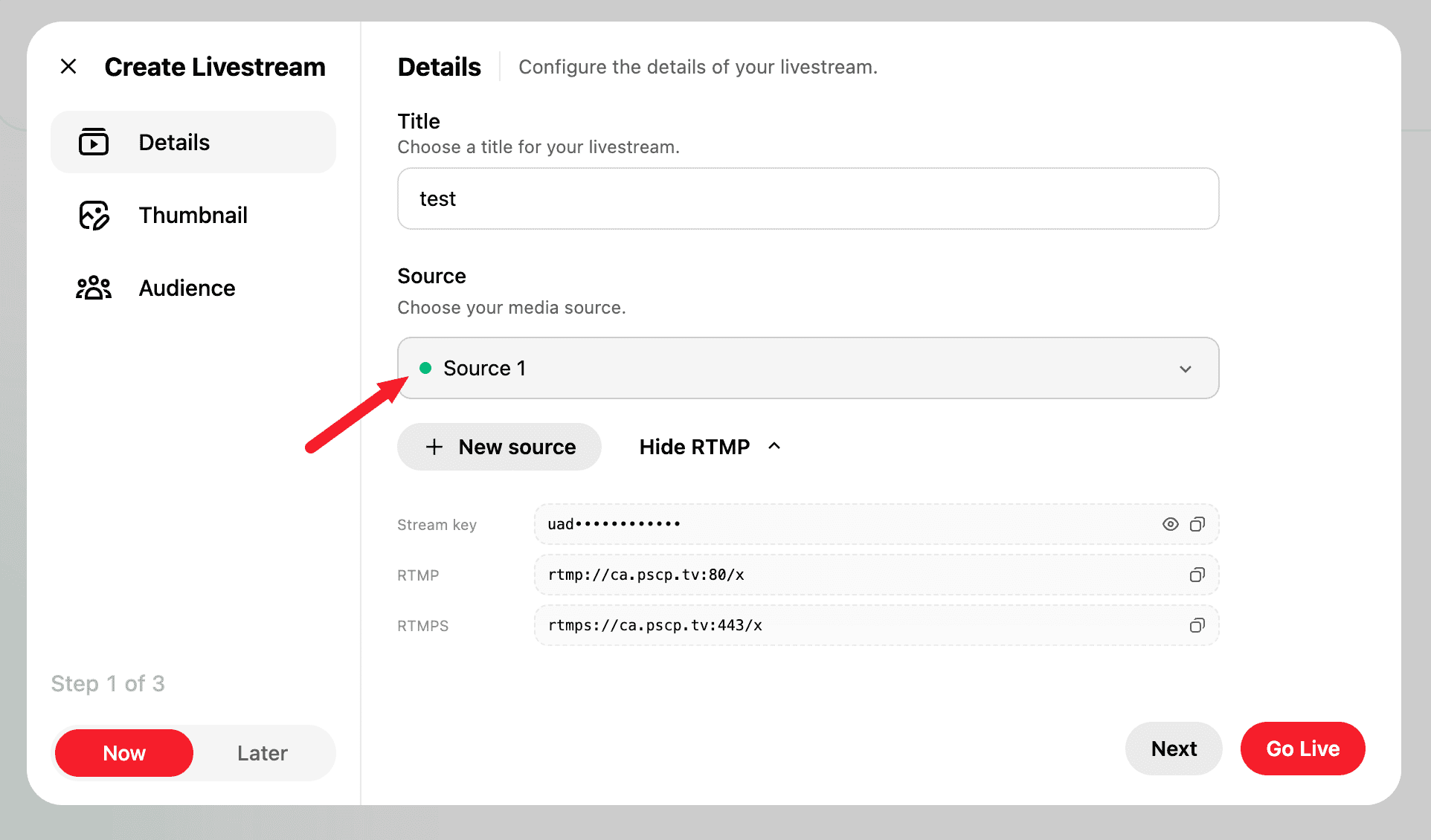
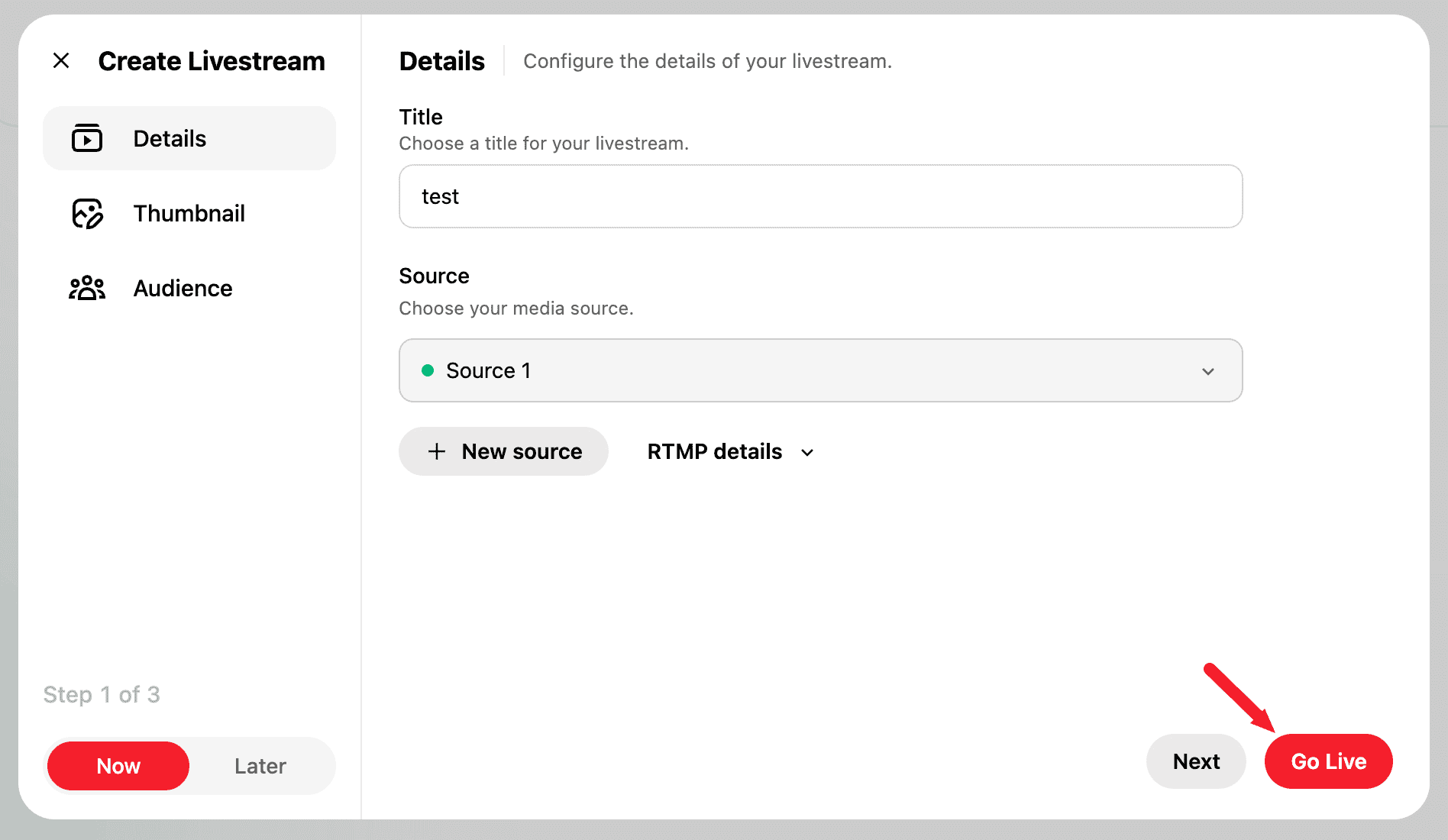
Click Go Live in X when you are ready for viewers to watch.
Troubleshooting
If the X source does not turn green, check these items first:
- Make sure OBS is actively streaming to OctoStream.
- Confirm the X destination is enabled in OctoStream.
- Re-copy the X stream key and update the destination if the key changed.
- Wait at least 15 to 20 seconds after starting OBS before refreshing the X Live dashboard.
Once X shows the connected source, OctoStream can keep sending the same OBS feed to X and your other enabled destinations simultaneously.